Can we change the name of the tests purchased from the library?
Yes, it is possible to change the name of the tests purchased from the library. Below is a detailed explanation:
Editable Test Name: The admin has the capability to edit the name of any test that has been purchased from the library. This helps in customizing the test title to match specific requirements or preferences.
Modifying Test Settings: In addition to renaming the test, the admin can also adjust various test settings. This includes changing the time duration, modifying the test instructions, and altering other configurations as needed.
How to Edit:
- Navigate to the Test Manager.
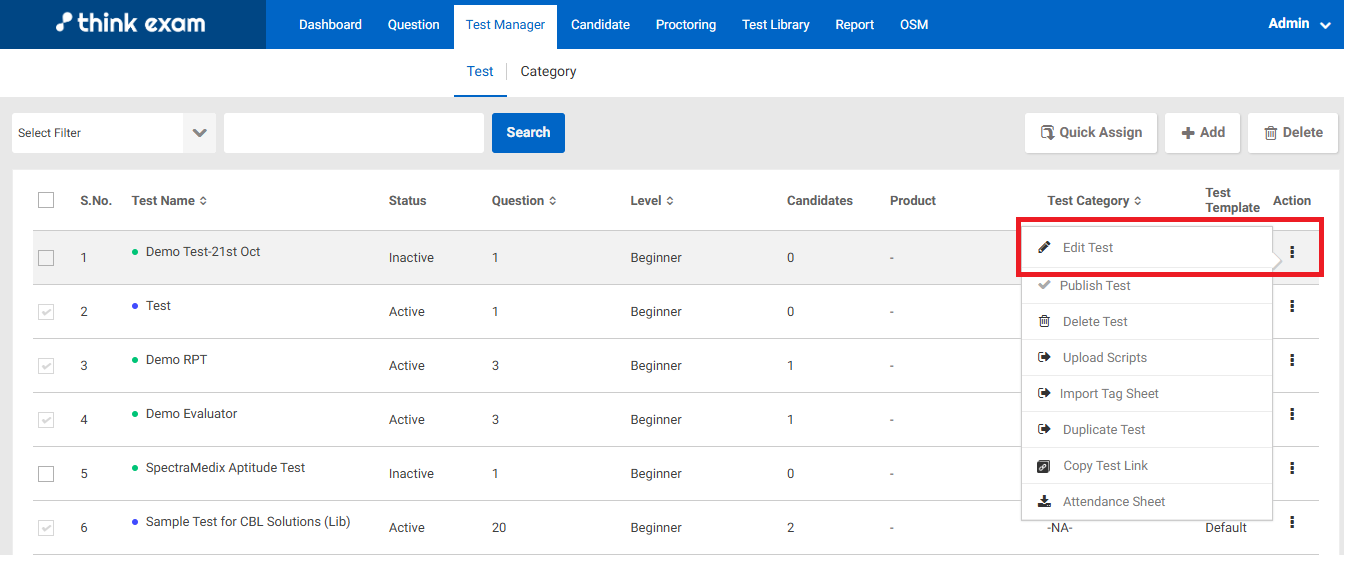
- Hover over the three dots (options menu) next to the test you want to edit.
- Click on the Edit Test option.
Related Articles
Can we add/edit questions to the test purchased from the library?
No, it is not possible to add or edit questions in tests purchased from the library. Below is a detailed explanation: Restriction on Editing: The tests obtained from the library come with pre-set questions that cannot be modified by the admin. This ...
How to create a test from Test Manager?
To create a test, follow the steps given below. Step 1 : create Test 1.Click on the “Test Manager” Tab and then click on the “Test” button. 2. Now click on the “Add” button which is on the right hand side of the screen. 3. Here, add all relevant ...
Test Manager - Overview
Introduction: In the Admin portal, the Test Manager feature helps admins efficiently manage tests for candidates. This includes creating, editing, regenerating reports, publishing/unpublishing tests, and more. Within the Test Manager tab, admins find ...
Candidate Change Password
GETCandidate Change Password This API will be used to update the candidate's password. Pass ak, sgn, and ts as headers, and all three parameters will be received using the Signature Generation API. Headerak:{{API Key}} sgn:{{sgn}} ts:{{ts}} URL ...
How to change the Admin Password?
Step 1 : To change the admin password, please navigate to the Admin Settings section. Step 2 : Select the Admin User option under the Account module. Step 3 : Click the pencil icon under the Action column for the Admin user whose password you wish to ...