Buy Product

Buy Product

Overview:

This section showcases all the available products, including test series or courses, provided to you by your admin. By completing the purchase, you gain access to the content of the chosen product. This allows you to explore and utilize the materials and resources included in the product for your learning or assessment needs. Once you have made the purchase you can navigate to the "My course" to access the purchased course or navigate to "My Test" if you have purchased a test series.


Buy Product:
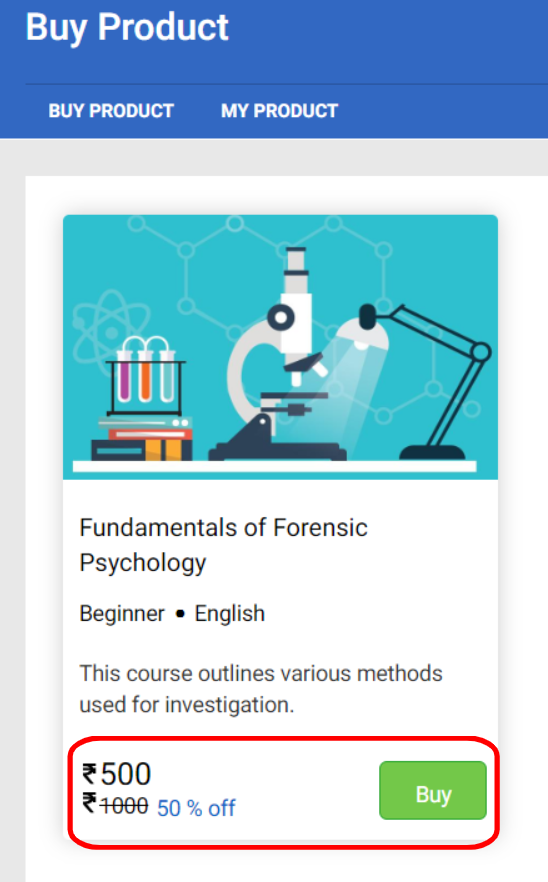

  1. By clicking on the "Buy" option associated with a specific product, you can easily make a purchase to gain access to its content. 

My Product:
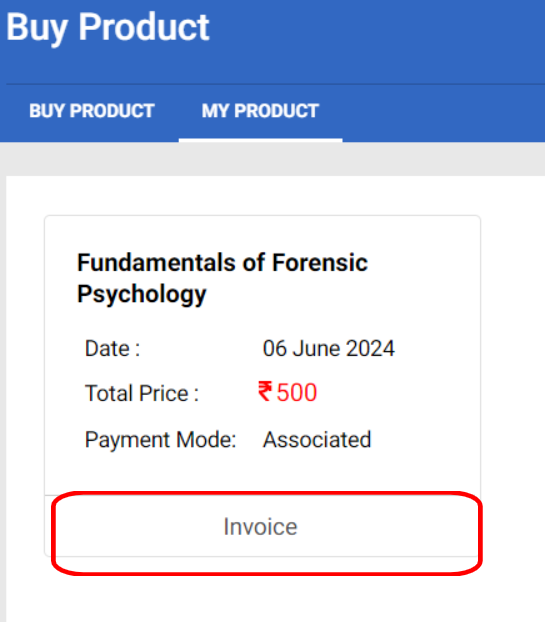

  1. Under  "My Product" section, you will find all the products you have purchased so far. This section serves as a convenient repository to view the purchases made along with the invoices.


    • Related Articles

    • How to create a product?

      Overview: The Product feature on Think Exam functions as a digital learning resource. It allows admins to develop both courses and test series, providing candidates with organized educational materials and assessments to enhance their learning ...
    • How to Upload Content in Product?

      To upload content in the Product module, follow the steps below: Step 1: Navigate to the Product module and click on Content. Create the desired content by clicking on Add button before linking it to any product. Once the Content has been created, ...
    • What is the purpose of the Product Link tab?

      Product link allows admins to add links to a single or multiple product on an external webpage.
    • Do you provide Think Exam product training?

      Yes, we provide detailed product training to our customers. Our onboarding sessions cover all aspects of the Think Exam platform, addressing any assessment-related queries and ensuring you are well-prepared to use the system effectively.
    • How can I create a new link for the product?

      To create a new link for the product, follow these steps: Navigate to the Product Link section in the Product Tab. Click on the Add button. Enter the required information. Click on the Save button.