How can we upload a video to the platform so that it appears under the "Videos" section of the Candidate Panel?

How can we upload a video to the platform so that it appears under the "Videos" section of the Candidate Panel?

Please follow the steps below to add a video to the Video section of the candidate panel:

1. Go to the Candidate Tab in the Admin Panel and select Documents.


2. Click on the Add button.


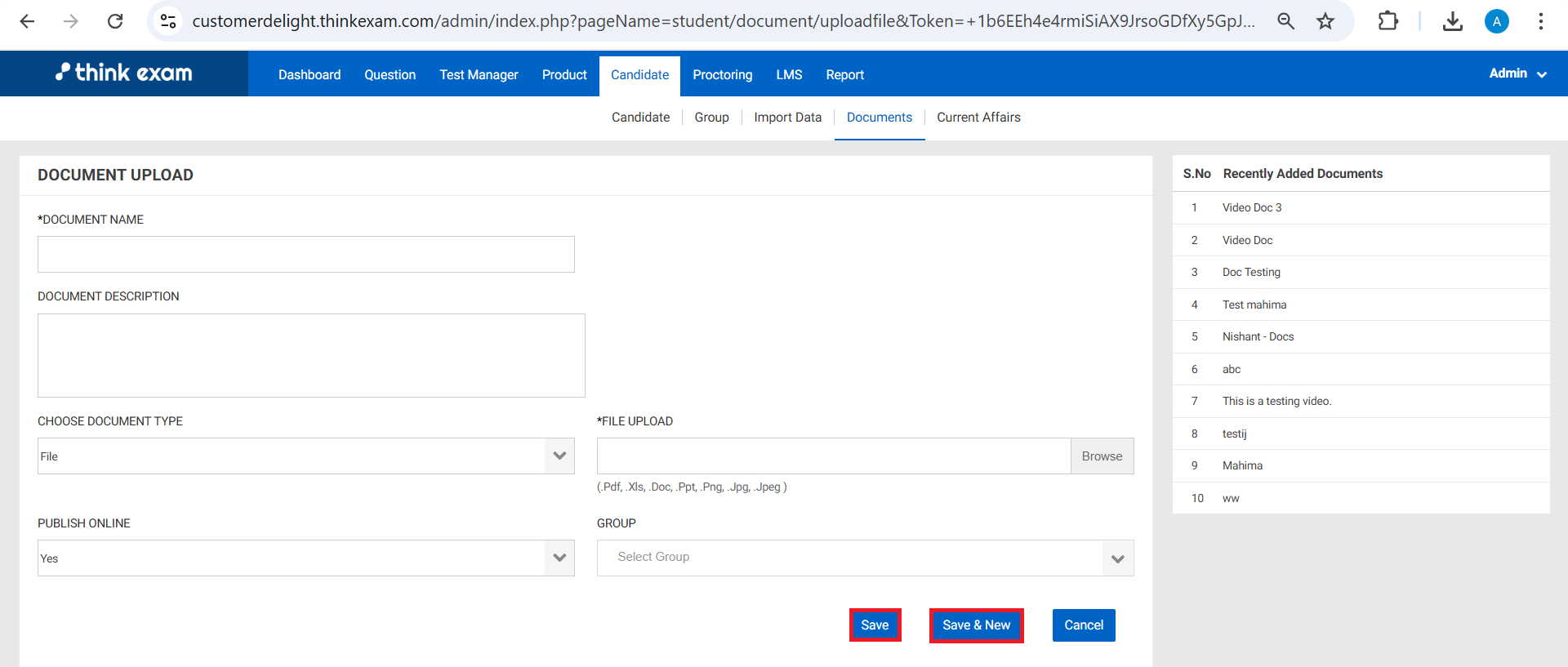
3. The Document Upload page will appear. Enter the required details.


4. Click on the Save button. If you want to add another video immediately after saving the current video, select Save and New instead. 


    • Related Articles

    • Overview of the Think Exam Candidate Panel

      Once a candidate successfully logs in to the Think Exam Candidate Panel, they can access various features and learning resources through the left-hand navigation menu. These modules are designed to help candidates manage assessments, track ...
    • How to Upload Documents from the Admin Panel?

      The steps to add Documents for the Candidates are : Step 1 : Log in to the Admin panel and navigate to the Candidate module and select Document tab. Step 2 : Click the Add button in the top right corner. Step 3 : Enter the required details. Choose ...
    • How to add Videos or Documents which can be shown on Candidate Portal?

      Admin can add Documents in .pdf, .xls, .doc, .ppt, .png, .jpg, .jpeg or Video Embed Code with Iframe tags or just the youtube video url. Sample Iframe tag example: <iframe src="https://www.youtube.com/embed/VIDEO_ID" style="width:100%;height:360px;" ...
    • Candidate Panel - Overview

      Overview: The Candidate Panel is a user-friendly interface designed to provide a seamless experience for candidates taking online assessments. It is equipped with a variety of features and functionalities to ensure that candidates can easily navigate ...
    • How can we get test links from the admin panel?

      Steps to get Test Links form the Admin Panel : Log in to the Admin Panel and navigate to the Test Manager module. 2. Click on the three dots next to the test name under the Action button and select Copy Test Link. Admins can now share these copied ...