How to add Current Affairs related information for the Candidates?

How to add Current Affairs related information for the Candidates?

To add current affairs related knowledge for candidates. Navigate to Candidate-> Current Affairs section as shown in the screenshot:

Click on the Add button and add appropriate values which are required like Title, Banner, Group to associate this Current Affairs information for, browse the content type you want to share:
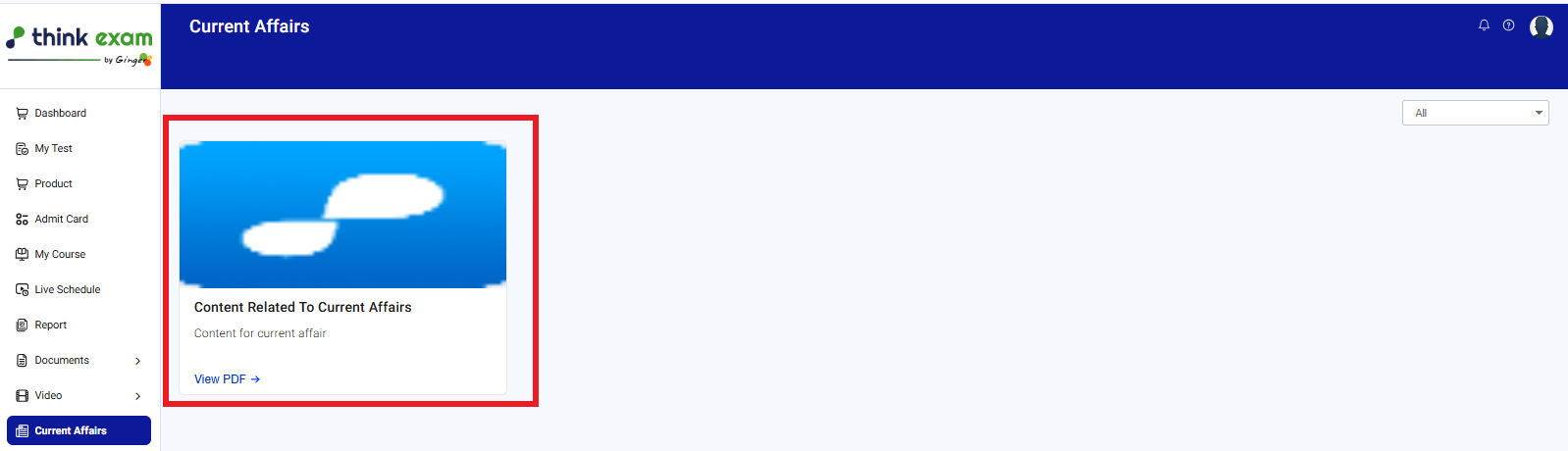
The Current Affairs section will look like this as per Candidates' Point of View:
Note:   Keep note of the maximum upload limit which is 5MB for Video and 2MB for other files
    • Related Articles

    • How to add Digital Material for Candidates?

      You can add Digital Material with the type of Booklet, Home Assignment or Notes. The digital material must be associated to Subject, it's subsequent Topic and Group. The file type can be (.pdf, .xls, .doc, .ppt, .png, .jpg, .jpeg). If the Document ...
    • How To Add Candidates From The Admin Panel?

      Candidate : Overview The “Candidate” Tab allows you to add candidates either manually or you can import via an excel upload. You can create different groups and you can also associate candidates with each group. This helps us assign Tests to a ...
    • How to enable slot booking for Candidates?

      We can enable slot booking option for candidates so that they can attempt the test on their preferred timings. Step 1: To add a new time slot, navigate to Test Manager-> Test section and select the action icon for the Test for which we need to add ...
    • How to view Payment information for the Products made by the candidates?

      Payments made or initiated by the candidates can be viewed through Product-> Payment subsection. You can export the details in excel format. You can also filter the payment view based on 'Invoice No', 'Candidate Name', 'Candidate Email', 'Mobile', ...
    • How to add Frequently Asked Questions (FAQs) on Candidate Portal?

      We can add Frequently Asked Questions (FAQs) for Candidate Portal in case we have some common questions that needs to be addressed for all candidates. Navigate to Admin -> Settings -> Candidate Panel-> FAQ Management and click on 'Add button' as ...