How to add Digital Material for Candidates?
You can add Digital Material with the type of Booklet, Home Assignment or Notes. The digital material must be associated to Subject, it's subsequent Topic and Group. The file type can be (.pdf, .xls, .doc, .ppt, .png, .jpg, .jpeg). If the Document type is Video Embed Url then use Iframe tags (recommended) or just the youtube video url.
To add Digital Material from Admin Panel, navigate to LMS section and click on 'Digital Material'. Then click on 'Add' button:
Then add the digital material as per your preference . Assigning Group is necessary to show the material to respective Candidates. Then click Save:
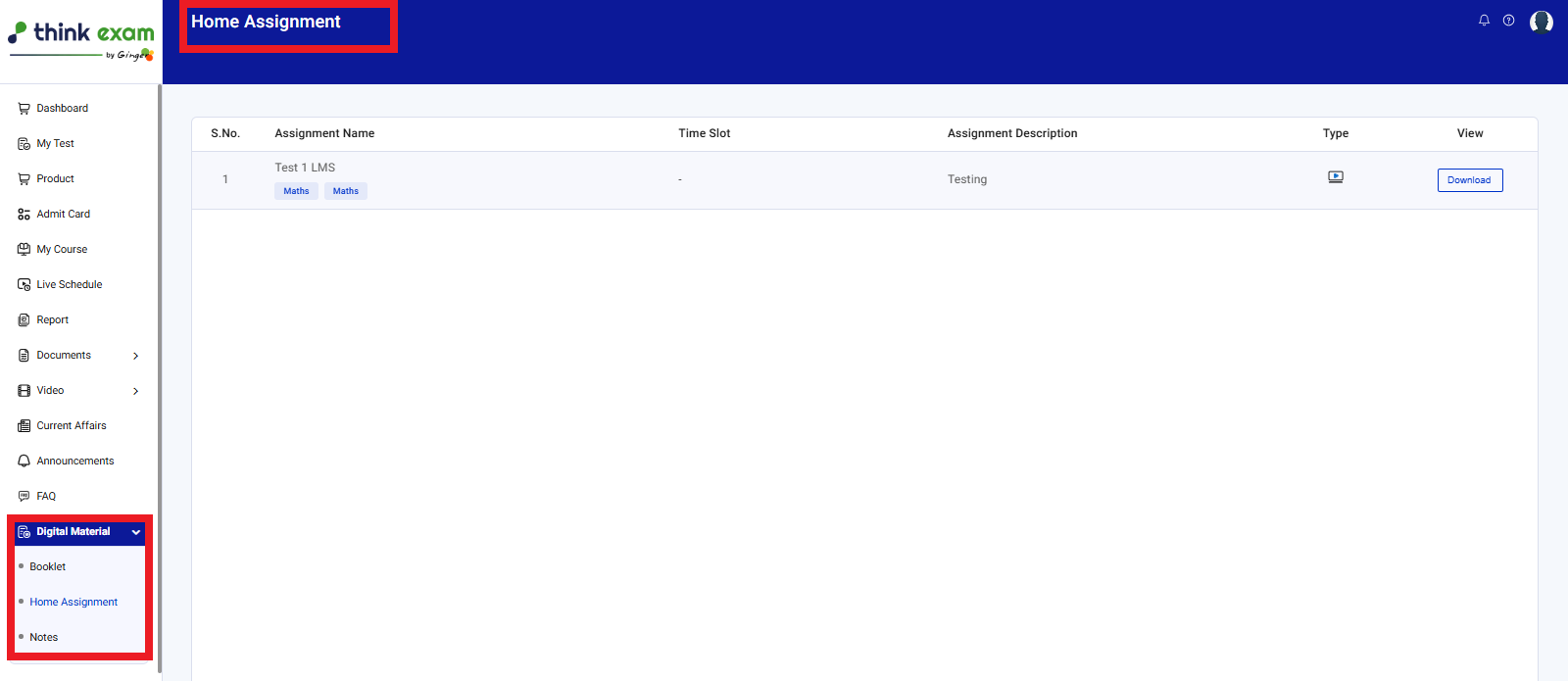
The Digital Material will be visible to the candidates on the Candidate Portal as shown in the screenshot:

Sample Iframe tag example:
<iframe
style="width:100%;height:360px;"
frameborder="0"
allow="autoplay; fullscreen; picture-in-picture"
allowfullscreen>
</iframe>
Related Articles
How To Add Candidates From The Admin Panel?
Candidate : Overview The “Candidate” Tab allows you to add candidates either manually or you can import via an excel upload. You can create different groups and you can also associate candidates with each group. This helps us assign Tests to a ...
Dashboard - Overview
Overview : The Admin portal offers sections like Dashboard, Question, Test Manager, Product and Candidate. Each section provides you with the ability to effectively manage it based on your needs. This includes tasks like creating or deleting tests, ...
How to enable slot booking for Candidates?
We can enable slot booking option for candidates so that they can attempt the test on their preferred timings. Step 1: To add a new time slot, navigate to Test Manager-> Test section and select the action icon for the Test for which we need to add ...
How to add Frequently Asked Questions (FAQs) on Candidate Portal?
We can add Frequently Asked Questions (FAQs) for Candidate Portal in case we have some common questions that needs to be addressed for all candidates. Navigate to Admin -> Settings -> Candidate Panel-> FAQ Management and click on 'Add button' as ...
How to view and add questions in Multiple languages?
Overview: The "Support Multiple Languages for Interface Test" feature allows users to create tests that can be viewed in multiple languages. This functionality ensures that candidates can access and answer questions in their preferred language, ...