How to attempt a Proctored Test?
Overview:
To successfully attempt a proctored test on Think Exam, follow these steps:
Step 1: Login
- On the login page, enter your login credentials (ID & Password) which you should have received via email.
Step 2: Start Test
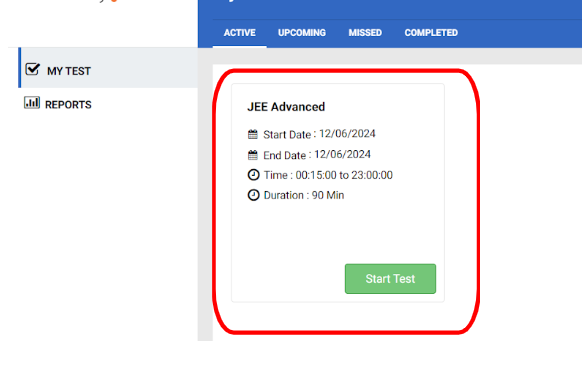
- Click on "Start Test" to begin the system check and verification process.
Step 3: System Check
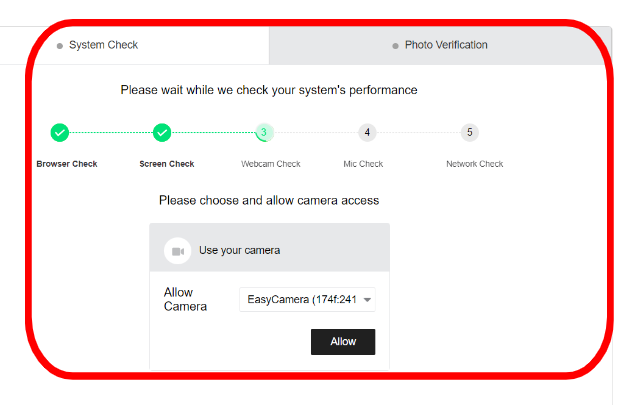
- Click "Allow" for screen sharing and select the Entire screen option. Check the box below and then click "Share".
- Allow camera permissions by clicking on the "Allow" button.
- Allow microphone permissions by clicking on "Allow" again.
- After your network is checked, you will proceed to the photo verification step.
Step 4: Photo Verification
- Position your face correctly in the box and click "Take Photo".
- Click "Verify".
- After the verification is complete, click on the "Next" button.
Step 5: Instructions
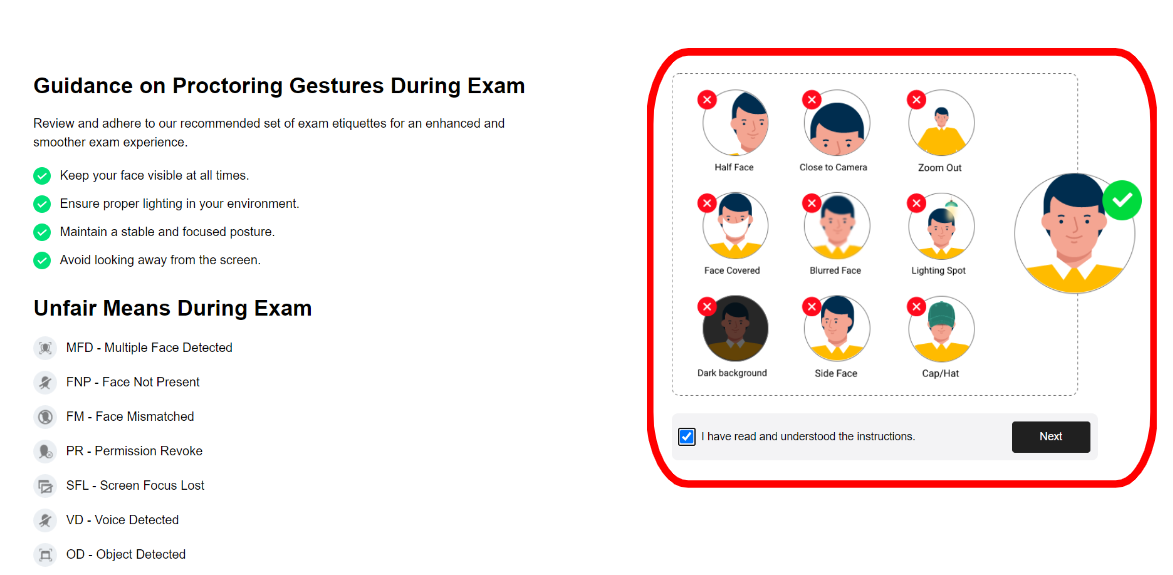
- Review and acknowledge the general instructions displayed on your screen, check the box, and then click "Next".
- Review and acknowledge the test instructions, then click "Next".
- The system will prompt you to share your screen again. Repeat the same steps: select the entire screen, check the box, and click "Share".
- You should now be able to see the test questions and begin your test.
Following these steps ensures that you meet the requirements for a proctored test and can proceed smoothly with your exam.
Related Articles
How to attempt a Proctored Test?
How to Attempt a Proctored test Step 1: Login On the login page, enter your login credentials (ID & Password) which you should have received via email. Step 2: Start Test Click on "Start Test" to begin the system check and verification process. Step ...
How to create a proctored Test?
Proctoring settings: Overview This setting enables you to activate proctoring for the test, allowing you to configure the proctoring settings based on your needs. There are two types of proctoring available: Manual Proctoring With this option, a ...
How to create a test from Test Manager?
To create a test, follow the steps given below. Step 1 : create Test 1.Click on the “Test Manager” Tab and then click on the “Test” button. 2. Now click on the “Add” button which is on the right hand side of the screen. 3. Here, add all relevant ...
How to reset Test Attempt?
Overview Resetting a test attempt allows you to give candidates another opportunity to take the test, whether they've accidentally submitted it or wish to reattempt it. Steps to Reset a Test Attempt Method 1 1. Navigate to the Test Manager and click ...
How to attempt an Online Test?
Step 1 : Login On the candidate login page - enter your credentials such as email Id and password and then click on the login button. After logging in, in the “Active” tab you will find the test which you need to attempt. ( In case no test(s) are ...