How to Attempt a Typing Test Question in ThinkExam
Overview
The Typing Test question type allows candidates to test their typing speed and accuracy by typing the given text within the allotted time. Candidates are required to type the provided text as accurately as possible in the designated answer area.
Steps to Attempt a Typing Test
1. Log in to the Candidate Panel
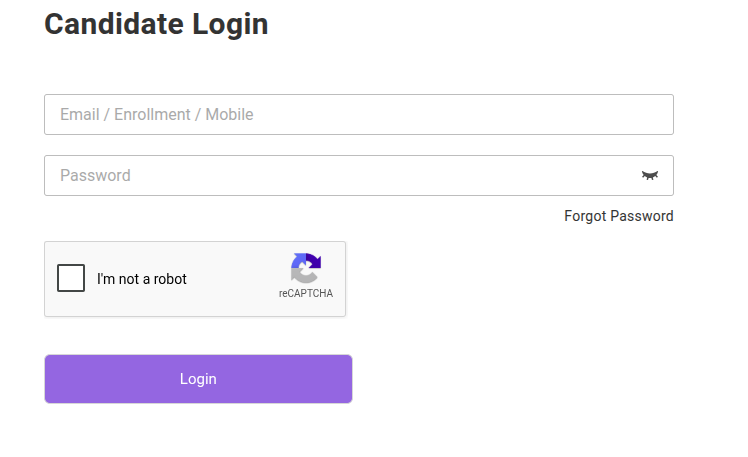
Log in to the ThinkExam Candidate Panel using your registered credentials.
2. Open the Assigned Test
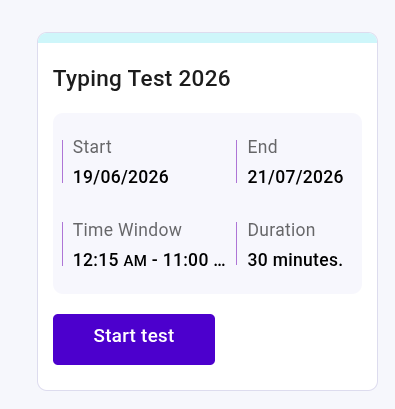
Navigate to the assigned test and click Start Test to begin the examination.
3. Read the Given Text
Once the typing test is displayed, carefully read the text provided in the question area before starting to type.
4. Start Typing
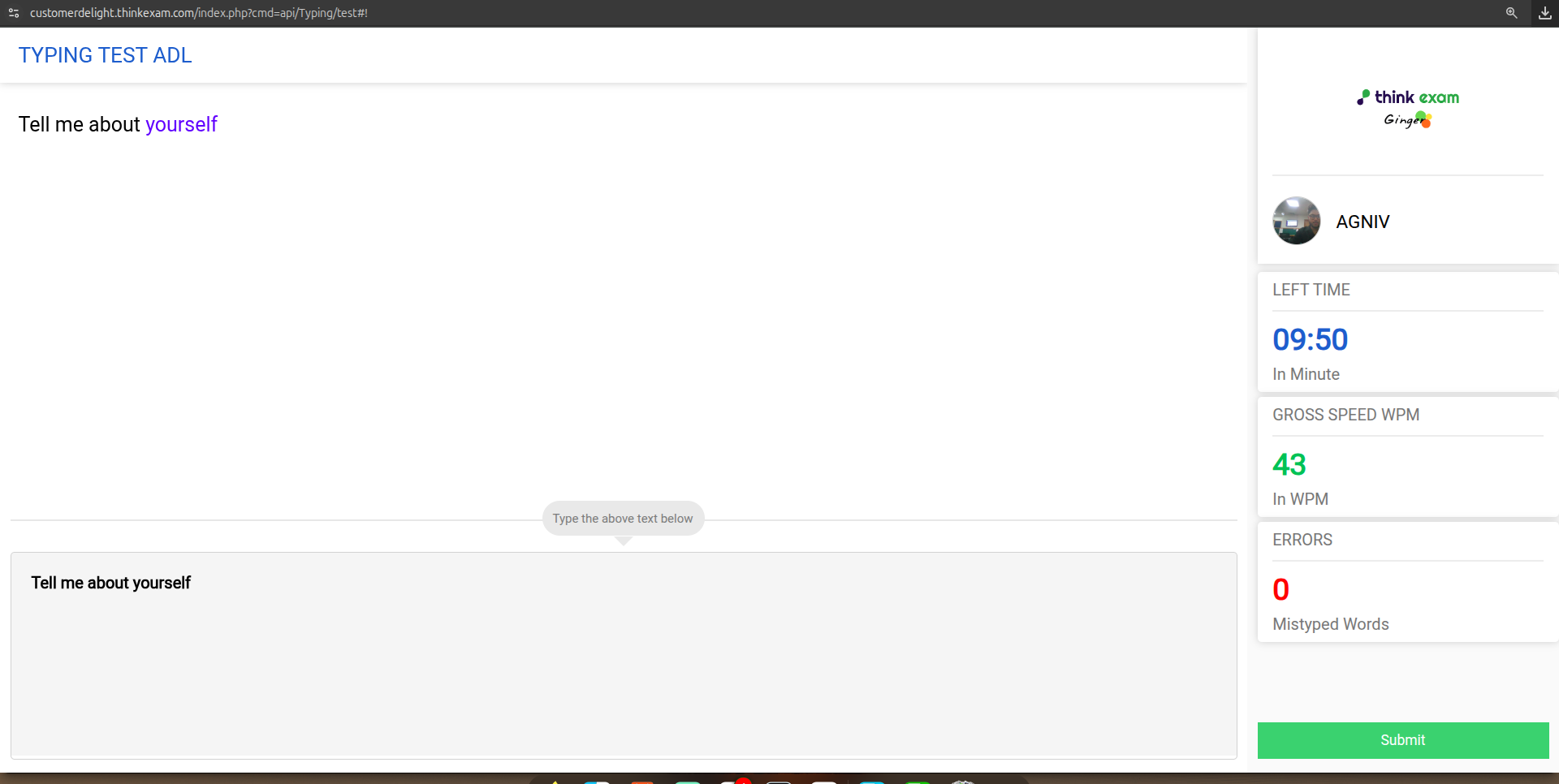
Click inside the designated typing or answer area and start typing the given text.
- Type the text exactly as displayed in the question.
- Ensure that you maintain accuracy while typing.
- Avoid unnecessary spaces or additional characters.
5. Review Your Response
If time permits, review your typed response for any spelling mistakes, missing words, or incorrect characters.
6. Submit the Test
Once you have completed typing, click on submit the test.
Important Notes

- Type the provided text as accurately as possible.
- The typing test may be evaluated based on typing speed and accuracy, depending on the test configuration.
- Ensure that you have a stable internet connection while attempting the test.
- Do not refresh or close the browser while the test is in progress.
- If the test is conducted using the ThinkExam Secure Browser, do not exit the Secure Browser during the examination.
- Follow all instructions displayed on the screen before and during the typing test