How to notify candidates that a new test is published?
You can notify candidates through the Announcement section in the Candidate Portal and the bell icon, so they can easily see which new tests have been added.
Navigate to Test Manager, select the test through Action button (⋮) and then click on Notification:
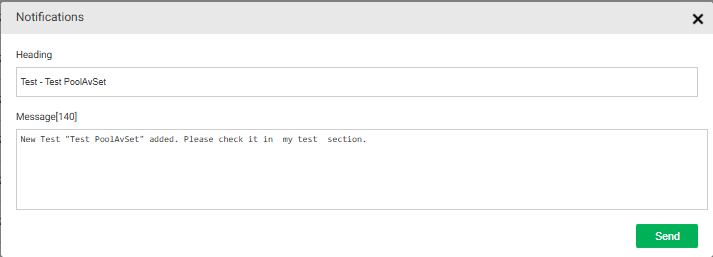
Then a custom message with default name of the test appears. You can edit the Heading and Message:
The Notifications will be shown under 'Announcement' section for the Candidates and the bell icon when a new test is published:
You can unpublish or delete the notifications through Admin-> Settings ->Candidate Panel -> Announcements. Using the Action button, if the Tick is shaded in light grey, then the notification is unpublished, you can delete the notification by clicking on the recycle bin:
Related Articles
How to create a test from Test Manager?
To create a test, follow the steps given below. Step 1 : create Test 1.Click on the “Test Manager” Tab and then click on the “Test” button. 2. Now click on the “Add” button which is on the right hand side of the screen. 3. Here, add all relevant ...
How to create a Pool Test?
Steps to create a Pool Test: Step 1: Create Test Log in to your Think Exam panel and navigate to the "Test Manager" tab. Click on "Test" and then on "Add" to create a new test. Enter the test details, such as name, duration, instructions, and other ...
How to enable slot booking for Candidates?
We can enable slot booking option for candidates so that they can attempt the test on their preferred timings. Step 1: To add a new time slot, navigate to Test Manager-> Test section and select the action icon for the Test for which we need to add ...
Test Manager - Overview
Introduction: In the Admin portal, the Test Manager feature helps admins efficiently manage tests for candidates. This includes creating, editing, regenerating reports, publishing/unpublishing tests, and more. Within the Test Manager tab, admins find ...
How to create a proctored Test?
Proctoring settings: Overview This setting enables you to activate proctoring for the test, allowing you to configure the proctoring settings based on your needs. There are two types of proctoring available: Manual Proctoring With this option, a ...