How to view and download Digital Material from the Candidate Panel?
Candidates can access and download the digital learning materials shared by the administrator by following the steps below:
- Log in to the Candidate Portal.
- From the left-hand navigation menu, click Digital Material.
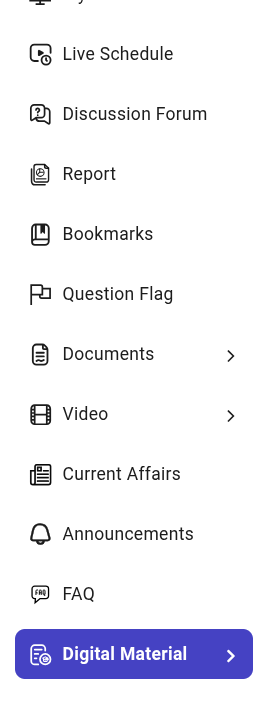
Select the required category from the available options:
- Booklet
- Home Assignment
- Notes
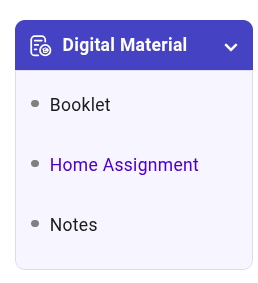
- A list of the available digital materials (such as PDFs, Excel files, videos, etc.) under the selected category will be displayed.

- Locate the required file and click Download to save it to your device.
Related Articles
Overview of the Think Exam Candidate Panel
Once a candidate successfully logs in to the Think Exam Candidate Panel, they can access various features and learning resources through the left-hand navigation menu. These modules are designed to help candidates manage assessments, track ...
Digital Material
The Digital Material section enables candidates to access learning resources shared by the administrator. It includes the following categories: Booklet – View and download study booklets. Home Assignment – Access and download assigned homework or ...
How to add Digital Material for Candidates?
You can add Digital Material with the type of Booklet, Home Assignment or Notes. The digital material must be associated to Subject, it's subsequent Topic and Group. The file type can be (.pdf, .xls, .doc, .ppt, .png, .jpg, .jpeg). If the Document ...
Candidate Panel - Overview
Dashboard Overview The Dashboard provides a comprehensive overview of your activity and progress on the Think Exam platform. It serves as the central page from which you can access your pending tests, enrolled courses, performance insights, and other ...
View Report
This functionality allows proctors and administrators to access detailed information about individual candidates during or after an assessment. By clicking the View Report icon, users can review critical candidate data, including test status, ...