Proctoring
Overview
In the proctoring tab, you can view all the proctored tests, assign batches/proctors, and manage the proctoring settings.
Test List
This tab displays all the proctored tests created on your panel. You can manage the settings and download reports for each test by clicking on the three dots.
- Assign Proctor: Click this option to select and assign a proctor to the test.
- View Report: This option provides an overview of the test, including pending authentications, candidate status (attendance), test status (completed/in-progress), proctor status, and test details (duration). Click the proctor view arrow to monitor each candidate assigned to that proctor.
- Check Attendance: This option allows you to check attendance.
- Pending Authentication: This option lets you check and verify any pending candidate authentications.
- Check Candidate Details: View and export the details of candidates assigned to the test.
- Event Report: An Excel file with details of candidates and their activities during the test can be downloaded.
- Message Report: This report lists candidates who initiated a conversation with the proctor during the test.
- Feedback Report: This report contains details of any feedback received from candidates (functional only if feedback is enabled in the test).
- Suspicion Report: This report provides details of candidates' suspicious activities detected during the test.
Proctor

- This tab under proctoring allows you to add proctors.
- To add a proctor, click the add button and enter details such as name, email ID, password, etc. You also have the option to import proctors via Excel import.
- To Import Proctors - click on the Import button, under the proctor tab and then download the sample excel file. Fill in the details such as Email ID , password etc. Save your file and upload it on the panel.
History
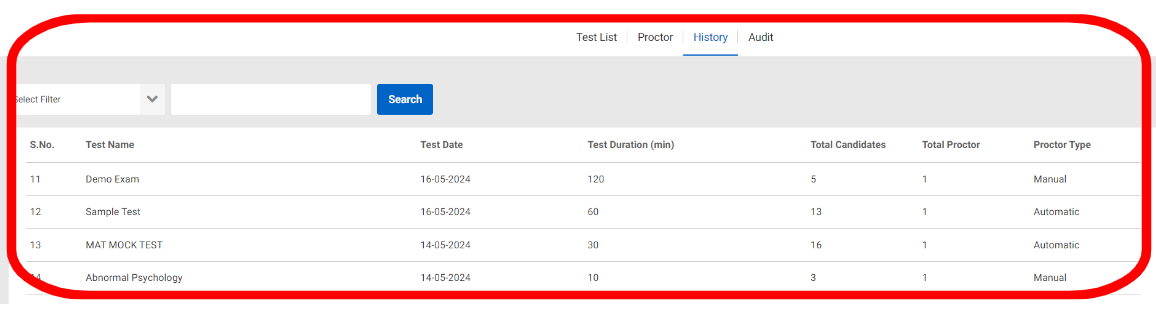
Under this tab, you will find the list of tests where candidates have attempted and completed the test. By selecting a specific test, admins can access details of the candidate's session, UFMs, and session video.
Audit

This section displays a list of candidates who have taken a proctored test. It includes their session videos and any UFMs generated during the tests.
You can track a candidate's activity during the exam by searching for their name, enrollment number, or email. This allows you to view the tests attempted by the candidate. By selecting a specific test, admins can access details of the candidate's session, UFMs, and session video.