These are the settings where the admin can change the candidate portal and admin portal as per their requirements.
 The admin can add or remove entities according to the requirements and specify the selective options on the left side menu of student portal for every student.
Theme Manager- This section provides option to change text and icon color from black to white and vice-versa whichever is suitable in contrast with the header and footer theme.
It gives a new innovative side to the admin panel, making it more attractive and brighter to the user.
Watermark- Watermark feature lets Admin display his/her brand name on the test screen as well as on the solution report.
Admin can use of watermark as one of the ways to popularize brand in the market as well as save his/her original work from the chances of plagiarism.
Candidate Left Menu: Admins can change the visibility for Candidate's Left Navigation Bar Menu, simply click on the edit button which enable the option to enable/disable the checkboxes. Then click on 'Save' button on the bottom to save the changes. Use the 'Reset' button to revert back to default menu.
Banner: Add banner for the My Test section using the Add button
Add Banner Name, Upload Banner Image (png, .jpg, .jpeg ) (Image dimension 1920px X 160px), set the Status to 'Active', put 'Order' according to preference for the banner's priority, and Banner redirect link if you want candidate to hit a particular link if they click the banner:
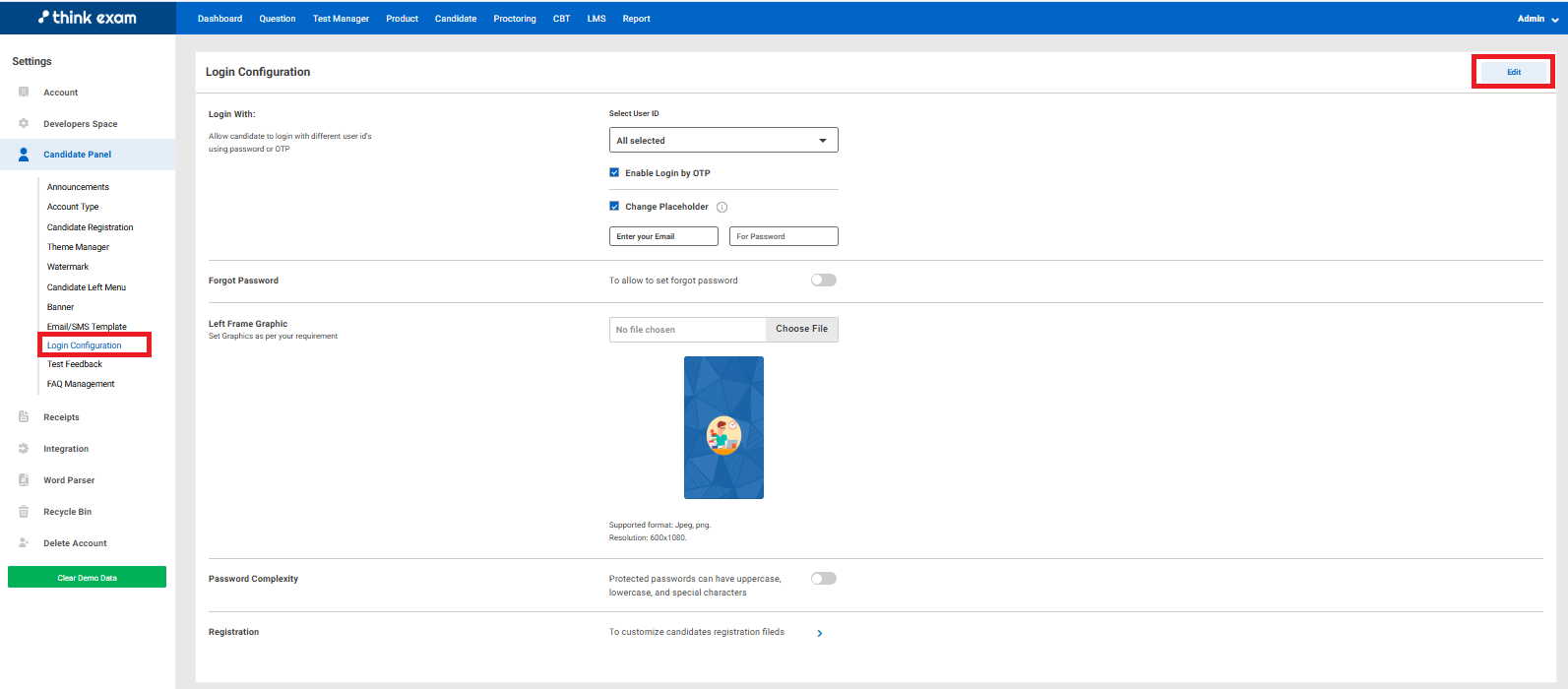
Login Configuration: This setting configures the 'Candidate Login' page using the Edit button, you can edit the Login option for candidates, whether they can login using 'Email', 'Mobile Number' or 'Enrolment Number' . Change the Placeholder name, allow candidates to reset password by enabling the switcher, change Left Frame Graphic of the login page, set Password Complexity and navigate to change Candidate's Registration(to customize registration fields like which fields to be shown to candidate when they register) fields if required
 Test Feedback
: Admins can create and manage feedback templates from here. You can Add, Preview, Edit and delete the templates as required.
Navigate to Add Button: You can customize the type of questions you want to ask the candidates and save the template.
You can view the Reports from Candidates using feedback reports
Email/SMS Template: Admins can view, edit and add templates using Email/SMS Template option. We can edit the Email and SMS content using the pencil icon

. You can edit the dynamic variables for each candidate using 'Script Variable' drag and drop feature. Enable the content using the label switcher. Please
note that editing SMS Template requires approval from Distributed Ledger Technology (DLT). You can edit Email templates as per your preference.
The banner will appear in the "My Test" section:
Receipts- Admin can view the receipts of those products, which have been associated with his subscription.
Recycle Bin- When you archive a candidate from admin panel it is not immediately removed from the panel. Instead, it is moved to the Recycle Bin, which acts as a safety net to prevent accidental data loss. From there you can restore that candidate.
Deleted Account- Through this, admin can cancel their account by requesting a termination of the subscription. The entire content from the panel will be deleted once instructed for the cancellation of the account.
Clear Demo Data- Through this, admin can delete the sample data of the portal. Like the total candidates. questions, tests, etc.
FAQ Management - In ThinkExam, FAQ Management is a feature that allows the admin to create and manage a list of Frequently Asked Questions for candidates or users.
Purpose of FAQ Management
To create FAQ's for Candidate Panel follow the steps mentioned below :
Step 1: Go to Admin Settings, select Candidate Panel, then click on FAQ Management, and finally select the Add button.
Step 2 : Click on the Select Category dropdown and choose Add Category to create a new category.
A category is created to organize and bifurcate the FAQs into relevant sections. For example, if you are adding frequently asked questions related to how to start a test, you can create a category named “Test Guide” or something similar.
Creating categories helps both the admin and the candidates easily navigate to the desired or related questions, ensuring a clear and structured FAQ section.
Once you have selected Add Category, you will get a page which includes Category name, sequence, etc.
1. Category Name :
- Enter the name of the new FAQ category (e.g., Payment, Exam Instructions, Technical Help, etc.)
2. Publish :
- Yes → The category will be visible to candidates in the Candidate Panel.
- No → The category will be saved but not visible to candidates.
3. Sequence :
- You can choose the position/order in which this category should appear.
- For example: If you select Sequence 1, it should ideally appear at the top.
By default, FAQs from all categories will be visible to candidates. They can apply filters based on their specific category as needed.

