Template
Templates let us set proctoring based settings.
This page lets us create, edit, duplicate or delete templates.
You can create a new template by clicking on the "Create New" button on the top-right side of the screen.
Device Support : Control which devices are permitted during the test
Desktop and Laptop or (Restrict test to run on desktop/laptop devices only),
Desktop/Mobile/Tab (Enable cross-platform exam access (desktop, mobile, tablet))

Auto (AI-driven proctoring to flag suspicious activities throughout the exam)
Live sessions (Integrated AI and human proctoring to ensure stronger exam security)
Under Live sessions, we have two types of monitoring setups (All sessions or Escalated sessions) - Escalated sessions are those which cross the Suspicion threshold.
Mild Level: Best suited for mid-stakes exams requiring standard monitoring.
Strong Level: Best suited for high-stakes exams requiring the highest level of monitoring.

Preferred session recording method: Video or Image (Image has capturing interval of minimum 5 seconds)
Screen Share: Enable monitoring and recording of screen-sharing activity.
Speaker Check: Ensure audio is enabled (input/output) to support live supervision and maintain exam integrity. If enabled, automatically use speaker for checking if the output device is available. If unchecked, candidate has to verify the speaker input.
Smart Proctor: AI-powered proctoring assistant designed to emulate human oversight, ensuring smooth and unobtrusive monitoring. This configuration enabled AI-powered chatbot for the session. The chatbot notifies if any unfair means are detected by the AI system.
Candidate Authentication:
Authenticate the candidate before starting the exam.
When enabled, we can check the Capture ID. This enables the platform to capture an Identity Card before starting the assessment for the candidates. (System and ID Check).
Continuity Camera:
Automatically verifies face visibility at set intervals to ensure continuous candidate presence during the exam (Range:10-30min). This is used to verify the real-time presence of candidate and check if the candidate is showing a static photo by tracking the eye-movement.
This feature does not generate Unfair Means(UFM) and does not deduct any credibility score.
Room Sanitization: Perform a full-room inspection in 360° to identify unauthorized objects.
Additional Camera:
AI camera provides the option to select a top or bottom view as per user preference.
- Side View/Front View/Back View
- Custom - A Custom Camera allows users to configure a specific camera view, either top or bottom, according to admin's preference. A Custom Camera Instruction to let candidate know where to set up the custom camera
Credibility Score Management:
*Failure Threshold
Threshold credibility score below which a session is considered compromised.
* Suspicion Threshold
Flag sessions as suspicious if the credibility score falls below the defined threshold.
Unfair Means (UFMs) are presented with Escalation Count which means the count of specific UFM will be marked in reducing credibility score after the count is crossed. For example, if Escalation Count for Face Mismatch is 1, then UFM starts getting deducted after the first time the UFM is generated. Meaning from the second count the score is deducted.
We can toggle Proctor Triggered UFM (abbreviated as PTU) in case of live proctoring mode . When an active proctor takes a snip of the live candidate session and deducts score based on Maximum Score Deduction set on the template, then the Unfair Means gets displayed under Session report for the candidate and are marked as PTU.
Super Proctor:
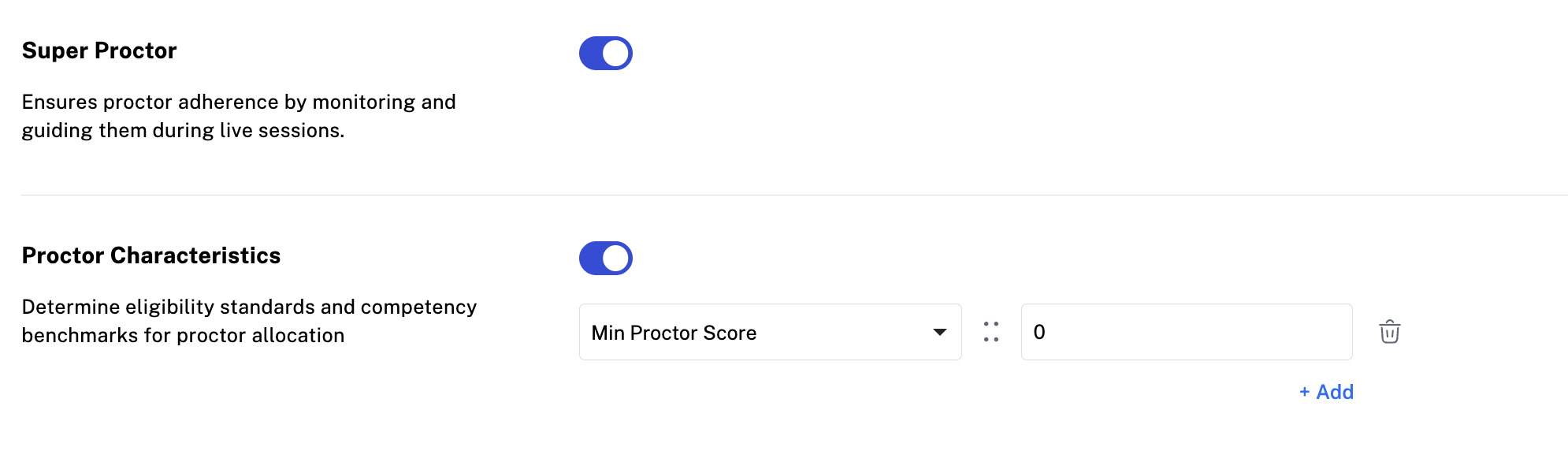
Ensures proctor adherence by monitoring and guiding them during live sessions. Super proctor can monitor the candidate's screens through active normal proctors.
Proctor Characteristics:
Assigns proctor based on Minimum Proctor Score, Experience and Language. The Minimum Proctor Score is evaluated based on different characteristics of the proctor such as Vigilance Score, Judgement Score and Coverage Score to be evaluated by the platform automatically.
Related Articles
Template- Report
The Template report tracks usage, performance, and trends across exam templates. The Template UFMs Metrics Graph and Line plot displays number of session conducted as per different template names. The blue bar represents normal session, the dark red ...AI Proctoring Template: Enhancing Exam Security with Automated Monitoring
AI Proctoring Template: Enhancing Exam Security with Automated Monitoring AI Proctoring Templates enable administrators to configure automated monitoring and security measures for online assessments. These settings leverage Artificial Intelligence to ...Integration in Think X
API Integration Track assessment monitoring methods and outcomes API Credentials API Key f891baad-eca6-4127-b191-85a60949b2fd API Secret RWUKc8TCi9tLjUlV3UeoFhoF4QTzMNK2851DpITcgrs= Signature Generation Post This API will be used to generate ...How to create an assessment with Think Proctor X ?
First, create a template using Think Proctor X platform. Refer the article here. Think Proctor X login address is: https://suite.thinkexam.com/login or https://proctoradmin.thinkexam.com After a template is completed, Navigate to Admin portal of ...SDK Documentation
Introduction Welcome to the Think Proctor SDK. This SDK helps you conduct examinations with automated proctoring to prevent users from cheating. The SDK tracks user activities and the environment using the camera, microphone, and screen, and takes ...