How to create a new Session?
Creating a new interview session is a simple and structured process.
Step 1: Initiate Session Creation

- Click on the “Create Session” button located on the right side of the page
- A new form will open where all required details must be filled
Note:

All fields in the form are mandatory.
Step 2: Enter Candidate Details
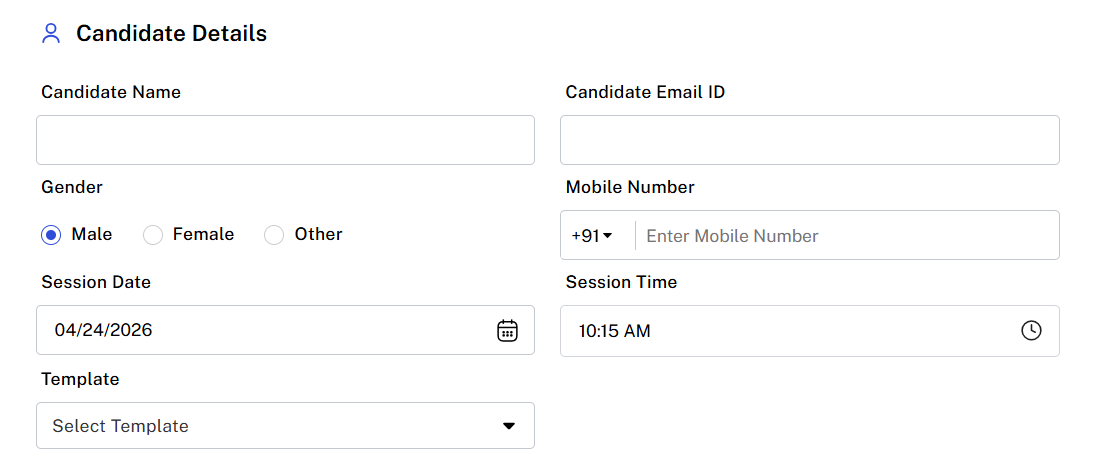
Under the Candidate Details section, the administrator must provide:
- Candidate Name
- Email ID
- Gender
- Session Date and Time
- Selection of the appropriate Interview Template
The template defines the structure and competencies to be evaluated during the interview.
Step 3: Interview Details
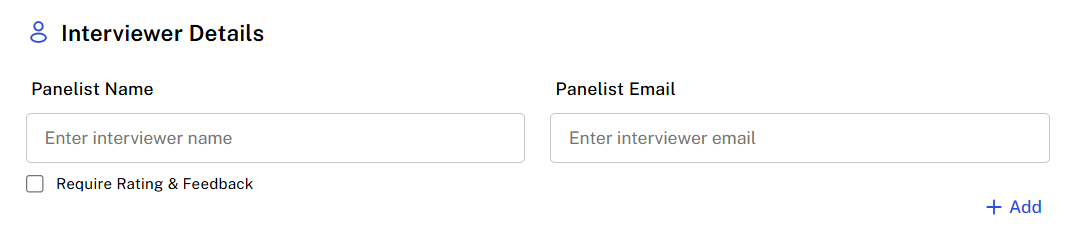
In this section, details of the interview panel are added:
- Enter the Panelist Name and Email ID
- Multiple panelists can be added by clicking on the “Add” option
Note:

A maximum of 5 panelists can be assigned to a single interview.
Step 4: Upload Required Documents
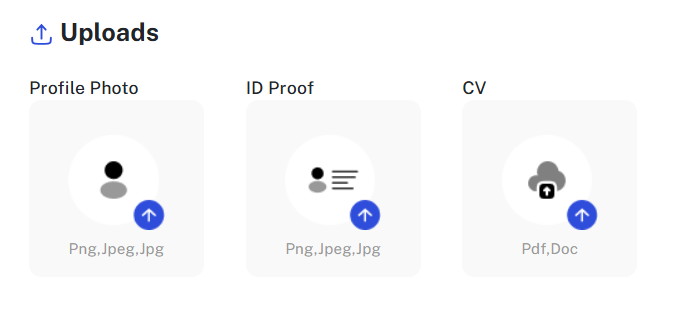
The Uploads section allows administrators to attach necessary candidate documents, including:
- Profile Photo
- ID Proof
- Candidate’s CV/Resume
These documents help interviewers review candidate information before and during the interview.
Step 5: Save the Session
Once all details are entered:
- Click on the “Save” button
- The interview session will be successfully created and added to the session list
Related Articles
Session
Session List The Session List displays all scheduled interview sessions in a structured format. From this section, administrators can view key details such as: Candidate name Interview status (e.g., scheduled, completed, no show) Interviewer ...How to Create a New Template
Create Template Click on “Create New” on the right-hand side of the screen. A new template form will open. Template Name: Enter a relevant name for the template Code: Auto-generated (for internal use) Interview Duration: Select from 15, 30, 45, or 60 ...Session List
Session List The Session List provides a structured view of all scheduled interview sessions. It allows administrators to easily track and manage interviews by displaying key details such as: Candidate Name Group & Role Interviewer (Panelist) Name ...Session Overview
The Session Overview module provides a consolidated view of all completed interview sessions. It enables administrators to monitor assessment outcomes and review candidate performance in a structured and insightful manner. This section displays a ...Global Settings
The Global Settings section allows administrators to configure essential platform behaviors to align with their interview and assessment requirements. These settings help standardize system operations across all users. System Time Zone This setting ...