How to Create a New Template
Create Template
Click on “Create New” on the right-hand side of the screen. A new template form will open.
- Template Name:Enter a relevant name for the template
- Code:Auto-generated (for internal use)
- Interview Duration:Select from 15, 30, 45, or 60 minutes as per requirement
Job Role Details
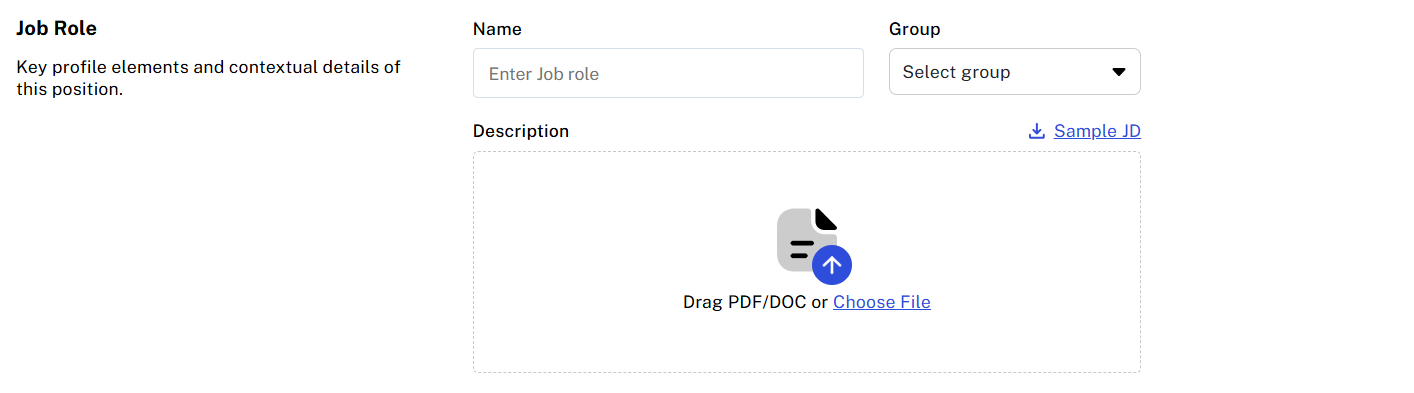
- Name:Enter the job role (e.g., Software Engineer, Technical Support Engineer)
- Group:Specify the department for which hiring is being done
- Description (JD Upload):Upload the Job Description
Note:

If a JD is not available, you can download the sample JD, update it as per
requirements, and upload it.
Functional Skills
Functional skills are automatically
generated based on the uploaded JD.
You can also manually add more skills by clicking on “Add”.
Behavioural Skills
Define evaluation metrics to assess
a candidate’s behavior, attitude, and interpersonal skills through predefined
criteria.
Candidate Characteristics
Select relevant personal traits
(e.g., adaptability, teamwork, ownership) to help the system better evaluate
the candidate’s overall profile.
Session Recording
Enable this option to record
candidate activity during the interview for audit and review purposes.
Candidate Authentication
Verify candidate identity before the
session:
- Capture ID:Candidate captures a selfie during the authentication process
- Face ID Matching:Compare the selfie with:
- Registration photo
- Uploaded ID
Additional Camera Setup
Candidates can set up an additional
camera for better visibility of the environment.
- Configure camera position (top/bottom view)
- Add custom instructions using “Set Instruction” for camera placement
Session Integrity Management
Define rules to manage candidate
credibility based on UFM (Unfair Means) violations, such as:
- Face Mismatch
- Face Not Present
- Looking Away
- Multiple Faces Detected
- Object Detected
- Permission Revoked
- Screen Focus Lost
- Voice Detected
You can adjust the score deduction for each violation as needed.
Session Credibility Threshold
Set a minimum score threshold.
If a candidate’s score falls below this value, the session will be marked as cheated.
Session Score Configuration
Classify candidate sessions based on
credibility scores:
- Clean / Trustworthy
- Mildly Suspicious
- Suspicious
- Highly Suspicious
You can define lower and upper
score ranges for each category and customize them as required.
Step 5: Save the Template
Once all details are entered:
- Click on the “Save” button
- The template will be successfully created and added to the template list
Related Articles
How to create a new Session?
Creating a new interview session is a simple and structured process. Step 1: Initiate Session Creation Click on the “Create Session” button located on the right side of the page A new form will open where all required details must be filled Note: All ...Template Report
The Template Report module provides comprehensive insights into the performance and effectiveness of interview templates used within the Think Interview platform. It helps administrators evaluate how different templates contribute to candidate ...Session
Session List The Session List displays all scheduled interview sessions in a structured format. From this section, administrators can view key details such as: Candidate name Interview status (e.g., scheduled, completed, no show) Interviewer ...Think Interview – Dashboard Overview
The Think Interview Dashboard provides a comprehensive view of interview analytics and insights, enabling recruiters and administrators to monitor interview progress, evaluate candidate performance, and make informed hiring decisions. It offers ...Interviewer Report
The Interviewer Report module provides a comprehensive analysis of interviewer performance and evaluation patterns. It helps administrators assess interviewer efficiency, consistency, and quality through AI-driven insights and performance metrics. ...